

Smart Search makes it easier than ever to find the right resource for the right situation.
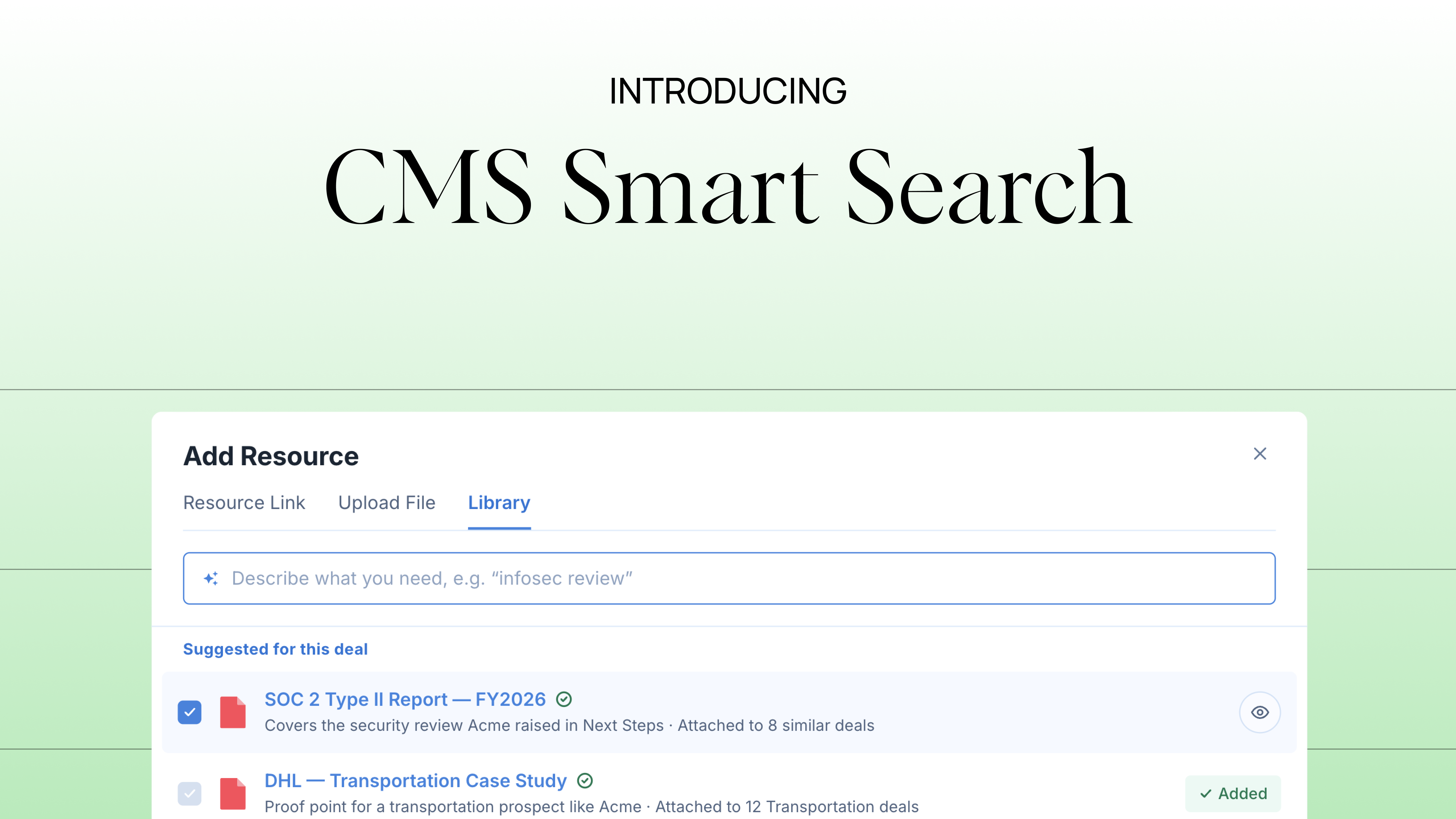
TL;DR: CMS Smart Search is now live in Accord. Describe what you need in plain language and the right resource comes back, regardless of how it was named or tagged.
The document your rep needs was uploaded eighteen months ago by someone who has since moved teams. They named it sensibly at the time, tagged it "compliance," and got on with their day.
Now that rep is preparing for a security review. They search "security," then "SOC 2," then "infosec questionnaire," and come up empty every time. So they close the library and message the enablement team instead.
Everyone did their job. The search still failed.
Up until now, Search in the Accord CMS was literal. It matched search terms against resource names, tags, metadata, and content.
That works when you already know what you are looking for. It breaks down when you know what you need but not what somebody else decided to call it. Using traditional search, Content libraries are only as effective as their organization, naming convention, and the memory of everyone using it.
That's why we're excited to introduce Smart Search in Accord’s CMS.
CMS Smart Search makes it easier than ever to find the right resource for the right situation.
CMS Smart Search reads the meaning behind a query instead of matching the characters in it. Describe the situation the way you would say it out loud, " security review" or "handling pricing pushback," and the resource that best fits comes back even if nobody tagged or named it that way.
Classic keyword search still runs alongside Smart Search so a search for an exact product name or resource still finds exactly what you need.
The result?
You can see CMS Smart Search in action here:
In addition to the overhauled search function, the entire CMS search experience has received a fresh coat of paint. Click the search box in the library sidebar or press ⌘K (Ctrl+K on Windows) from anywhere in the library, to open a new search overlay.
This new overlay enhances the search experience with a ranked list of search results as well as a preview window making it easier to quickly review each asset at a glance.
Not to worry, previewing doesn't count as a view, so browsing won't distort your usage numbers.
Each piece of content in the preview shows the resource's tags, how many times your team has used it, and whether the content is approved or expiring soon.
While building Smart Search we watched how our own team looks for content, how we manage it, and where users gave up and asked a colleague instead. Here are a few places to start.
Type your problem, not the filename. The closest result is marked “Top match” and you can narrow down from there by tag, file type, approval status, or who added the resource.
The same Smart Search functionality also powers the resource tab within individual Accords and Playbooks when adding a resource from the library. Leverage the same smart search overlay to select and add multiple resources all at once. Before you type anything, the Library tab shows Suggested resources: library content similar to what is already attached to that Accord. It is usually the fastest way to finish a section you have half built.
Most libraries contain content uploaded before the current naming convention existed. Smart Search also suggests workspace tags for resources, based on how similar it is to the resources already carrying each tag. If no tag in your workspace fits, nothing gets suggested. To tidy up your library in bulk, Smart search can also help move, tag, approve, or delete a batch without leaving the search.
CMS Smart Search is now live for every Accord workspace using the Accord CMS. There is nothing to configure and all previously added resources are now indexable by Smart Search.
Open your library, click search, and describe the last thing you couldn't find.
Want to see the Accord CMS in action? Book a demo and we'll show you how Accord surfaces content and enablement in your reps' natural flow of work.


%20(1).png)
.png)
.png)