
A step-by-step guide to connecting the Accord MCP Server, granting agent permissions, and automating your first workflows.
A step-by-step guide to connecting the Accord MCP Server, granting agent permissions, and automating your first workflows.
.jpg)
Historically, if a business wanted to connect their critical systems, automate a workflow, or query data sources, the answer was almost always the same: APIs and custom integrations. In the AI era, Model Context Protocol (MCP) removes this constraint.
MCP is an open-source standard for connecting AI applications to external systems. Using MCP, AI applications (MCP Clients) like Claude and ChatGPT can connect to applications (MCP Servers) such as Accord, enabling them to access data and perform tasks.
Think of MCP like a universal adapter that allows two devices to talk to one another. Any AI client that supports MCP can connect to any system that publishes an MCP server to discover its data or tools. For Developers (like Accord) this makes it easier than ever to provide access.
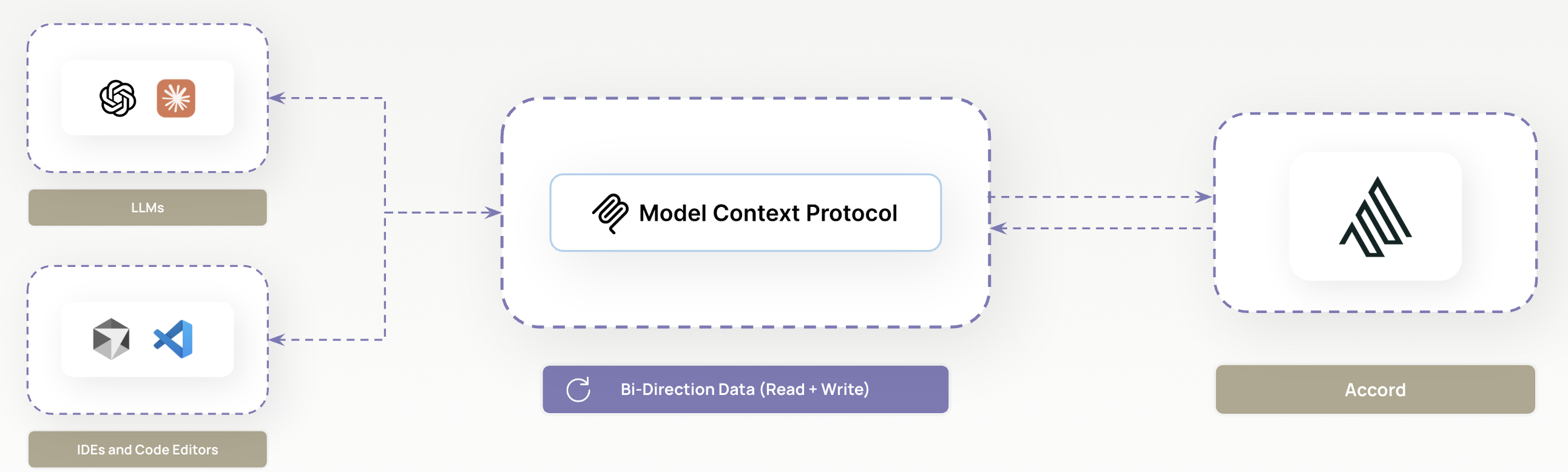
While using one server unlocks plenty of opportunity, the real power of MCP emerges when multiple servers work together through a unified interface.
For example, you may want to leverage data from Accord and Gmail via their respective MCP servers to build a specific agent or workflow and write the output of that agent back to Accord.
The Accord’s MCP, wraps the Accord Developer API providing read and write access to the same set of endpoints. All MCP requests are tied to user level roles and permissions in your Accord workspace, meaning access to the Accord MCP will always match the Accord data each user has access to from within the web app.
With access to nearly every field across the Accord web application, the Accord MCP enables teams to pull data, interface with Accord using natural language, and stand up agents that support their day-to-day workflows.
The Acord MCP can be easily configured for use with several common MCP clients including Claude, ChatGPT, AI coding tools such as Cursor, and many more.
To get started, all you need is an Active Accord workspace (for write access an enterprise level workspace is required) and an MCP client.
For the purposes of this article the Claude desktop application will be used as an example throughout. A list of instructions for other common setup configurations can be found here.
While the Accord MCP is not yet available in the official Anthropic directory, enabling it for your workspace only takes a few minutes.
For most organizations, we recommend your Claude admin connect the Accord MCP once for their entire workspace.
Steps:
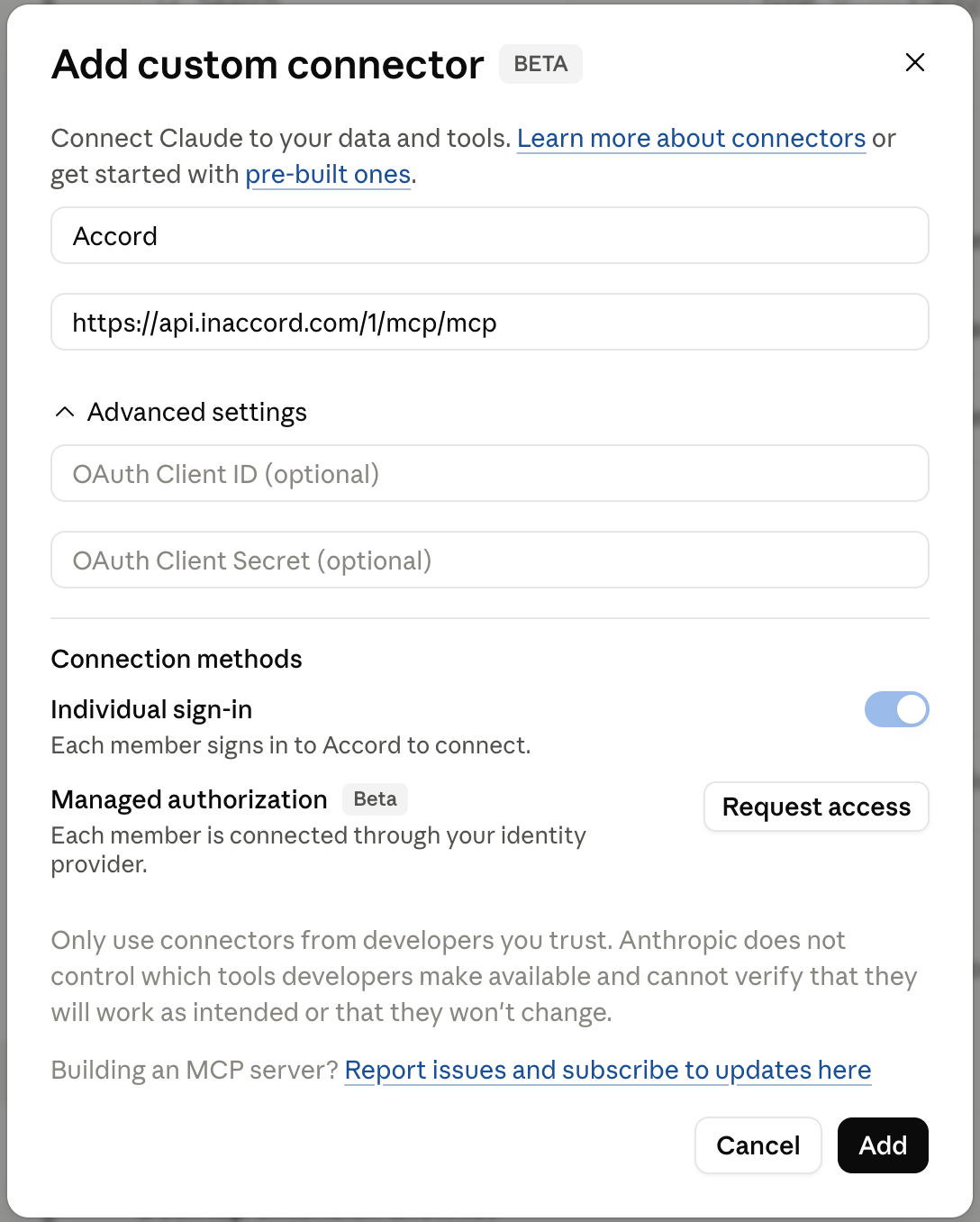
That’s it! Accord is now available as a connector for everyone tied to your Claude workspace. After this step individual users can now enable it from Settings → Connectors→ Discover. The Accord MCP will appear under “Your custom connectors” and be ready to authenticate using your Accord account.

After adding the server, Claude will trigger an authorization request to your Accord workspace automatically and your default browser will open to the Accord sign-in page.
Enter your workspace slug (e.g. acme for acme.inaccord.com and click Sign in as [your name] to complete the process. When you see the “Authentication Successful” page the handshake is complete and you can now close the browser tab.
Accord uses a roles and permissions system to dictate which users can access the Accord MCP, as well as the actions they can perform.
In addition to standard user permissions, workspace admins can now configure custom MCP permissions that grant or restrict specific actions based on team responsibilities. MCP access can never exceed a user’s own access. If a role does not have the correct permissions to perform an action in the web-app, granting access in MCP mode has no effect. This built-in governance ensures agents never go rogue and makes it easy to deploy MCP safely across your entire organization.
The toggle above the permissions grid switches between User permissions and MCP permissions.

Depending on how your team operates there are multiple ways to set up and issue MCP access. Here are just a few examples:
Workspace Admins: Keep MCP access limited to Workspace admins in Accord, and restrict access for everyday users.
Assign Limited Access:Use your existing roles, customize them, or create new roles that allow a limited set of actions over MCP. For example you may want your enablement lead to have full permission over the Accord CMS but nothing else.
Create a new MCP Focused Role: For MCP super-users create and assign an additional role (users can be assigned more than one role) that contains the right User and MCP permissions for the actions they require.
Depending on the challenge you’re trying to solve with MCP, different levels of permissions may be required.
You can see what role you’ve been assigned in Accord anytime from Personal→Profile→ Your Roles in Accord’s settings.

If you think you should have access to something you don't, contact your Accord workspace admin. For the following use cases, different levels of MCP permissions will be required!
Now that you're set up it's time to put the Accord MCP to use!
The following examples make use of workspace-level objects including: playbooks, CMS content, and admin settings. Each example lists the permissions it requires, whether it reads data, writes data, or both, and the output you should expect to get back.
In this article we are working in Claude, but the same prompts and use cases can be applied in any LLM or AI coding tool.
Remember: AI outputs can vary depending on the model you use, the prompts you select and even when running identical prompts. Treat these sample prompts as adaptable guidelines rather than fixed instructions, and tailor them to suit your team's needs.
Objective: Convert your existing sales documents, slides, and spreadsheets into an Accord Playbook. Scale your methodology, enforce best practices, and replicate the proven strategies of your top performers across the entire team.
Access Level: Read and Write
Permissions required:
The built-in Playbook Admin or Workspace Admin role grants every permission above to both users and agents.
Why It Matters:
Your methodology already exists. It's in last year's SKO deck, a MEDDICC spreadsheet, and scattered sales documents. Instead of teams training on documents and trying to remember your process, playbooks deliver your sales methodology directly to the field, in your reps' natural flow of work. Not only is it easy to enforce your process and best practices, it eliminates the usual friction reps face when trying to follow convoluted processes across multiple applications and documents.
Sample Prompt:
Help me create a new playbook in the [your Accord workspace].

I want to build an enterprise new-business playbook in Accord from our existing material:

~/Accord/Methodology/SKO 2026 Sales Process.pptx
~/Accord/Methodology/MEDDICC Qualification.xlsx
~/Accord/Methodology/Enterprise Deal Standards.docx

Take the following steps:

Read all three files, then read the stages, steps, and execution criteria already in our playbook.

Propose a structure: stage names, the steps under each, which steps are internal, and which step is the milestone.

Flag anything that duplicates what we already have and reuse the existing version where it fits. Show me the outline and wait for my approval before writing anything.


Create the approved stages and steps. Match the HTML title format of our existing stages, set the right step type for each, and express due dates as relative intervals from the milestone instead of fixed dates.


For every qualification field in the MEDDICC spreadsheet, check whether a matching execution criterion exists. Create the missing ones. Pick a criterion type Accord can verify automatically wherever possible, and tell me which ones fell back to a manual type.
Associate the criteria with the playbook.


Read the whole thing back and show me the finished playbook as an outline: stages, steps, owners, internal flags, and criteria. Report anything that didn't land.

The Playbook Summary tabs can mimic [URL of existing Accord]

The Next Steps page should be taken fully from the attached [methodology documentation]


Please use research from the internet about [your solution] to populate the positioning tab


For the resource folders and preview images use the layout in the template playbook.
Note: In this example we are copying several components of the playbook from existing playbooks and live Accords (deals). If you are building a playbook for the first time, include more granular instructions or reference sales documentation for each of the major sections of an Accord Playbook.
What to Expect:
After running the prompt, you should have a brand new playbook ready to roll out to your reps. The playbook should translate any documents provided into the appropriate fields in Accord (i.e., mutual action plans, business cases, etc.) and mirror any of the playbook elements you indicated in your prompt. We recommended taking a manual review of the playbook to ensure it meets your standards.
Tips & Tricks
Objective: Move a folder of sales assets into your Accord CMS with their associated metadata in a single pass. Your agent uploads each file, writes the title and description, applies tags, files it under the right hub, and publishes it, without anyone opening the CMS.
Access Level: Read and Write
Permissions required:
The built-in CMS Admin or Workspace Admin role grants every permission above to both users and agents.
Why It Matters:
Keeping your content library up-to-date shouldn't be a tedious manual effort. Instead of wasting time uploading, tagging, and organizing new materials, bulk upload over MCP collapses the process into a few clicks. Your agent reads existing hubs, uploads files, generates metadata, and links everything in one pass.
Sample Prompt:
I have a folder of sales assets at ~/location/location and a manifest at ~/location/manifest.csv with columns: filename, title, description, hub, tags, internal.

Using the Accord MCP server:

Read the manifest and list the folder. Flag every file missing from the manifest and every manifest row missing a file. Show me both lists before uploading anything.


Show me a plan: each file, its title, its target hub, its tags, and whether it's internal. Wait for my approval.


For each approved file, request a resumable signed upload URL for its content type, upload the file, and create the library resource with the manifest's title, description, and internal flag.


Link each resource to the hub named in the manifest, in manifest order.
Apply the tags in bulk. Run it as a dry run first and show me the diff, then apply it.


Publish the resources once I confirm.


Read every resource back and confirm the title, hub link, tags, approval state, and preview image. Report anything that didn't land.
What to Expect:
Before uploading, your agent scans your existing hubs, resource names, and tags to build an inventory and prevent duplicates. It then presents a detailed plan outlining the exact file, title, hub, and tags for every new asset. Once approved, the agent processes the files in batches, efficiently handling massive folders through a series of calls. All new resources arrive as unapproved drafts, staying safely out of circulation until you are ready to publish them. Finally, to ensure accuracy, the agent reads back the newly created records to verify that every asset landed exactly where it belongs.
Tips & Tricks:
Objective: Instantly identify any content in your CMS that has expired or is close to expiring. For anything that’s expired check to see if that contents had any usage from your team, if not schedule it for deletion. If it has, flag it for manual review to update.
Access Level: Read and Write
Permissions Required:
Why It Matters: Having a CMS is great, but it’s only as good as your ability to keep it up-to-date, organized, and ensure the content inside is actually getting used.
Sample Prompt:
Step 1:

In Accord, I have a content hub titled "your product hub", please take the following actions:

Generate a simple report that highlights any assets that have expired, include the usage of those assets over the last 30 days.

Anything with usage, filter into a list for me to manually review
Anything without usage, list out separately

-----------------------------------------------------------
Step 2:

Based on this report, remove any assets from "your producthub" flagged with zero usage

[Add specific asset name here if desired]
[Add specific asset name here if desired]
[Add specific asset name here if desired]
Note: In this example we’ve broken the prompt into two stages so that I can manually review before deleting any assets.
What to Expect: The first stage of the prompt should generate a report. Depending on how you instruct your LLM this can be static or updated as it runs (See example below). Once you have your initial report you can add step 2 and delete any of the items highlighted with zero usage.
Sample Output :
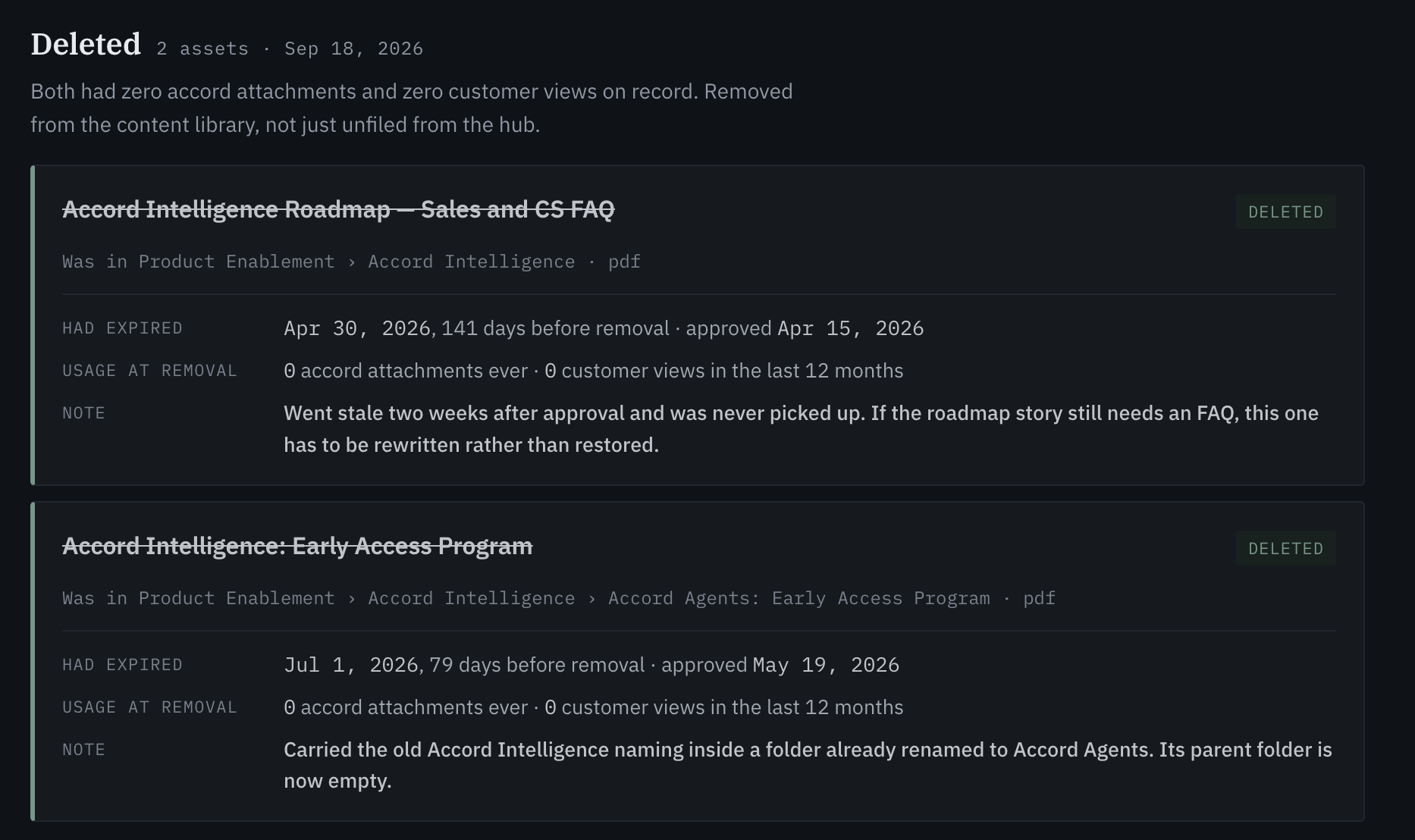
Tips & Tricks
Objective: Automate the manual work and bulk administrative actions across Accord. Add new members, delete members, update or reassign managers, manage team membership, and provision the views each team needs.
Access Level: Read and Write
Permissions required:
Why It Matters:
Admin work in Accord such as bulk creating members, deleting members and editing roles isn’t hard work but that’s exactly what makes it so expensive. While necessary work, your time is better spent on more strategic initiatives.
Sample Prompt:
We are onboarding the following AEs on Monday:
~/Folder/new_hires.xlsx

Add each of them to the workspace with the Member role, add them to the Enterprise West team, and assign [manager name] as their manager.

Give them the same custom views the rest of that team already uses.
Confirm the full roster back to me before you create anything, and flag anyone who already exists in the workspace.
What to Expect:
The agent confirms the roster against what you pasted, creates each member, and flags anyone already present so you can decide whether to update them instead of creating a duplicate. Ask for the final state of the team when it finishes, so you have something to check against your HR system.
Tips & Tricks
Objective: Get a grounded picture of where your deals stand without opening each one, using data already in Accord.
Access Level: Read Only
Permissions required:
Why It Matters:
Write access inside individual Accords is restricted today, but read access across them is not, and read covers most of what a rep wants before a call. Which steps are overdue, which stakeholders have gone quiet, which content the buyer has already seen.
Assembling that by hand means opening several Accords and holding the comparison in your head, which is why most people do it for the one deal they remember to check rather than the whole book.
Sample Prompt:
Across my open Accords, show me which ones have had no buyer activity in the last fourteen days.

For each one, summarize where it sits in the process, what the next step is, and which content has already been shared.

Rank them by deal value and tell me which three I should prioritize this week.
What to Expect:
After running you'll get a prioritized summary (Your AI tool will likely ask how you want it formated and in what filetype) you can work from directly. You can run it as often as you like and it needs no permission grant beyond read access.
Tips & Tricks
If you are having trouble getting the results you are after, consider the following:
All of the above examples are written to be run via a prompt in your AI tool of choice. However, there are many opportunities to automate these prompts for work you repeat often or on a set schedule. For example, you could build an agent that pulls from a spreadsheet or other third-party app to keep your user list continually updated. You could run CMS or playbook maintenance on a set schedule, or you could build an agent that triggers when certain actions occur in Accord itself.
In Claude, Skills are also a great way to package up effective prompts, iterate on them, and roll them out across your organization. If you create something that’s valuable and want to share it with your team, try creating a skill.
Who can use the Accord MCP Server?
Every Accord workspace can connect to the Accord MCP Server for read access. Write access requires an Enterprise workspace and a role defined in the system with the relevant MCP permissions granted.
Does the Accord MCP Server cost extra?
No. Pricing mirrors pricing for the Accord API, and there is no separate SKU or add-on. Starter and Growth workspaces get read access. Enterprise workspaces get read and write access, including custom roles and permissions for scoping what agents can do. Users are subject to their token limits in their respective LLM application depending on their plan.
Why can't agents work inside an individual Accord?
Currently, write access over MCP only covers workspace-level objects: playbooks, CMS content, users, teams, and workspace settings. Actions inside an individual Accord are currently restricted but will be provided in a future update of the Accord MCP server.
Can I run the Accord MCP Server read-only even with access to write functionality?
Yes, to ensure read only use cases leave every write permission off on the MCP permissions tab and your agents can query Accord without changing anything.
Does my AI client ever see my Accord credentials?
No. The Accord MCP Server uses OAuth 2.1 with PKCE, so your client completes a handshake and stores a scoped access token rather than an API key. Your credentials stay between you and Accord, and the model itself never handles a secret.
Can an agent do something I can't do myself?
No. any agent acting under your account is bound by your own role in Accord. If your role can't perform an action as a user, granting it on the MCP tab has no effect, and revoking a User permission revokes it for agents at the same time.
What's the difference between User permissions and MCP permissions?
In Accord, user permissions describe what a person can do when they work in Accord themselves. MCP permissions describe what an AI agent can do on your workspace's behalf. The toggle above the permissions grid switches between the two. The useful test for any MCP permission is whether you'd be comfortable with an agent performing that action without a person reviewing it first.
What happens if an agent makes a change I didn't want?
We recommend scoping permissions to the smallest set the workflow needs, and write prompts that ask the agent to show its plan before it writes. Reversal is possible via the Accord team for some actions.
Do I need a developer to set up the Accord MCP server?
No. All that is required is an admin (for your AI tool of choice) to add the Accord server into your list of connections for your organization. Command line clients such as Claude Code and Gemini CLI take a single command or config block, both of which you can copy from this article.
Which MCP clients work with Accord?
Any client that supports remote MCP servers over HTTP. Claude, Claude Code, Cursor, and Gemini CLI have documented setup paths in this article, and most other clients accept the same JSON configuration snippet. If your client asks for a transport type, choose HTTP.
Does everyone on my team need to set this up individually?
We recommend that for most organizations A Claude (Or your AI tool of choice) admin connects Accord once for the whole workspace. Each user then enables the connector and authenticates with their own Accord account, which is what ties their permissions to their session.
What happens when Accord adds new features?
Your connection keeps working and the new capability appears on its own. MCP clients run a tool lookup at connection time, so when Accord's schema changes, the tool list changes with it.